Annotations
Annotate Images with Arrows, Text and Rulers
Annotate is a mode of the Full edition with seven tools: arrows, text, numbered steps, rulers, shapes, freehand drawing and magnifiers. Everything is drawn over the photo, saved with the edit and editable again when it reopens.
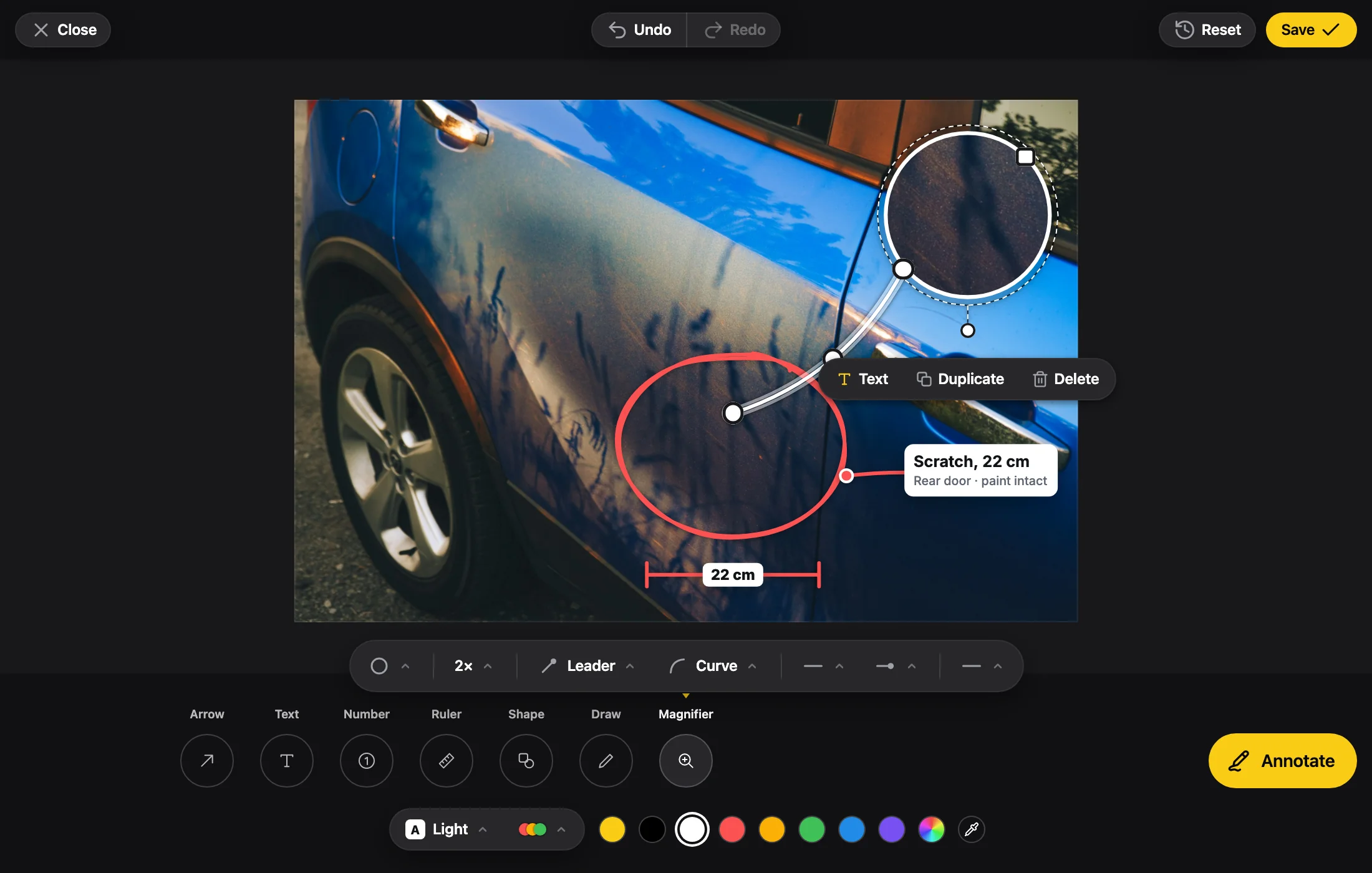
The editor, running in your browser, opened on a photo with its annotations already saved. They are still editable. Photo by Alexander Lunyov on Unsplash.
What It Does
What Annotations Gives Your Users

Seven Tools
A tap on an empty spot makes the whole piece there; a drag draws it live. A piece can be selected, moved, duplicated and deleted.
Arrows That Attach to Pieces
An arrow is Solid, Dashed, Dotted, Sketchy or Highlighter, on a Curve, Straight, Elbow or Rounded Elbow path. A text takes any number of arrows, and the Trail type draws a route.
Numbered Steps and Rulers
A Number is a step badge, alone, with words beside it, or gathered in a list under a title. A ruler label is typed, so it says what you want it to say.
A Magnifier for Detail
A magnifier is a round or rounded lens that enlarges a detail too small to read, its line running to the point it shows.
Nine Fonts
Nine fonts: Inter, Montserrat, Oswald, Anton, Playfair Display, Courier Prime, Caveat, Pacifico and Permanent Marker. They load only when letters are needed.
The Same on Screen and in the File
Sizes and strokes are a fraction of the photo shorter side, so the exported file draws the same picture the screen showed.
In Code
The Props That Control It
Review.tsx
<EmbedEditor
	annotationColor='#e11d48'
	annotationTheme='dark'
	src={src}
/>The Annotate button and its mode. Turned off, the annotations already in the state are still drawn and saved.
The color annotations start with, drawn opaque. The user can change it per piece.
'light', 'dark' or 'accent': what sits behind the labels at first.
The edits the photo opens with, annotations included. Read at open.
Called with the saved File and the state it was made with.
Use Cases
Where It Fits
Damage and Inspection Reports
Ring the damage, measure it with a ruler and enlarge a dent with a magnifier, then save the state with the report.
Product Callouts
Callouts with a title and a description, each with an arrow to the part it names.
Steps and Guides
Numbers beside each ingredient, or a numbered list under a title, for a recipe or a room tour.
Maps and Routes
Trails and elbow arrows for a route, with a ruler label for the distance and time.
FAQ
Questions
Which annotation tools are there?
Seven: Arrow, Text, Number, Ruler, Shape, Draw and Magnifier. A photo holds up to 200 pieces.
Can people edit an annotation after saving?
Yes. Annotations are saved with the edit in the state, and open editable again when you give that state back as the state prop.
Does the ruler measure the photo?
No. A ruler label is typed, never measured. Until it has words it shows a faded example on the screen only.
Do annotations look the same in the saved file?
Every width and size is a fraction of the shorter side of the photo, never pixels, so the screen and the exported file draw the same picture.
How do I turn annotations off?
Set enableAnnotate to false to hide the Annotate button. Annotations already in the state are still drawn and saved.
Try annotations in the playground.
It opens with this feature on. Change the edition, the colors and the tools, and copy the code for your app.
More features: Crop, Filters, Obfuscate, Watermark, Large Photos, White Label.