Crop
Image Cropper with Aspect Ratio
Embed Editor crops in the browser with a window the user drags and zooms, at a ratio you open it with or lock it to. It also straightens, rotates and flips, and Save writes a file at the size and type you cap. It is the Adjust tool, so it is in every edition.
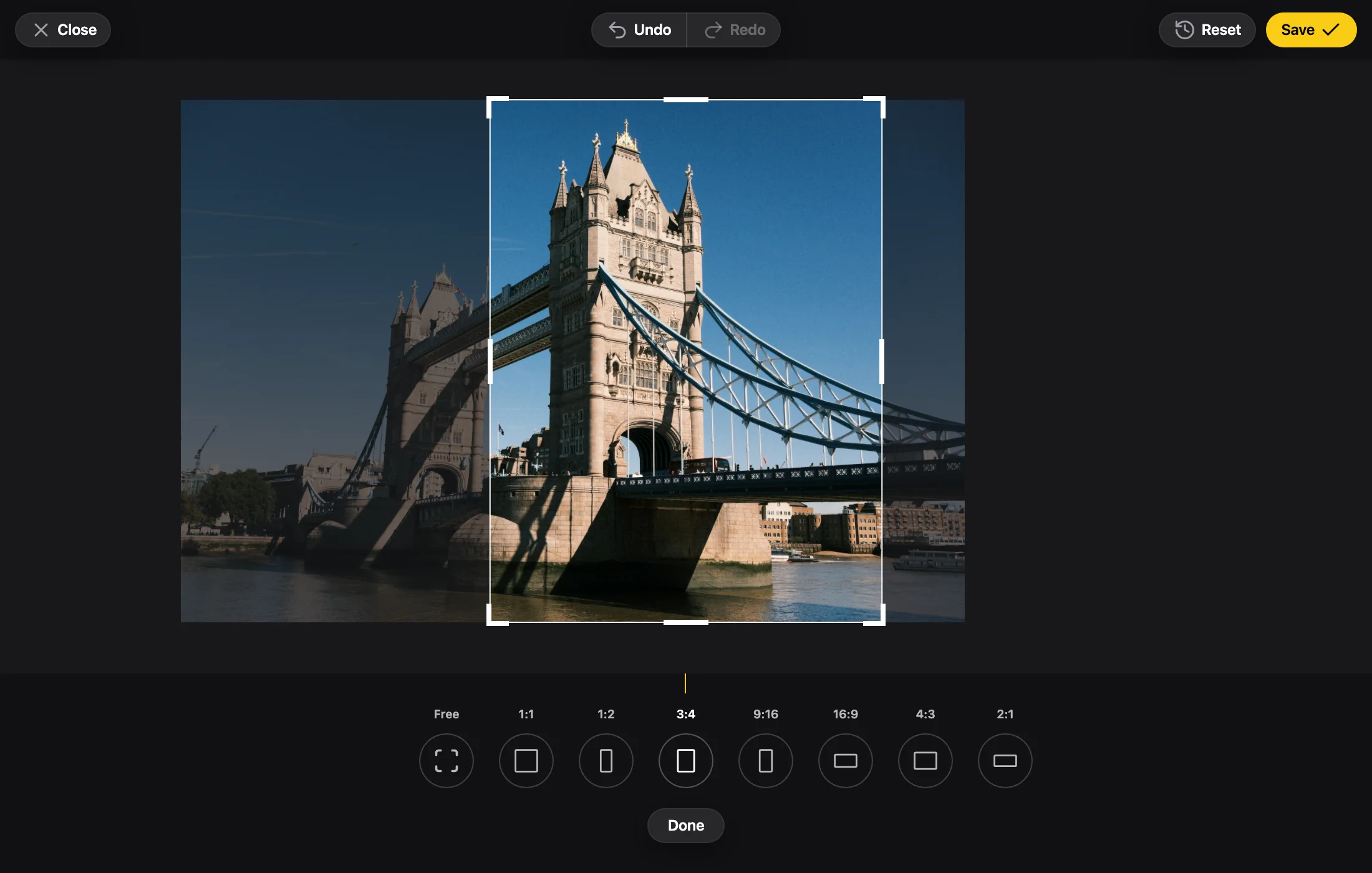
The editor, running in your browser, opened on a photo with its crop already saved. It is still editable. Photo by Nikita Khavkin on Unsplash.
What It Does
What Crop Gives Your Users

A Crop Window You Drag
Drag a corner or an edge to resize the crop window, and drag the photo under it to pan. Zoom with the wheel, a pinch or the Scale slider, from 100% to 1000%.
Seven Ratios and Free
Free, 1:1, 1:2, 3:4, 9:16, 16:9, 4:3 and 2:1. A ratio takes the largest window of that shape, placed where Focus says. Let go of a handle and the window springs back to fill the area, as on the iPhone.
A Crop That Finds the Subject
Focus places the window on the photo subject (Auto) or on its middle (Center), so a new ratio lands on what matters.
Straighten, Rotate and Flip
Straighten runs from −45° to 45° in 0.1° steps, with a magnet at 0. Rotate turns the photo 90° to the left, and Flip mirrors it left to right.
The Size and Type of the File
maxWidth and maxHeight cap the output, outputType picks JPEG, PNG or WebP, and outputQuality sets the JPEG and WebP quality from 0 to 100 (90 by default).
In Code
The Props That Control It
Avatar.tsx
import { EmbedEditor } from '@embededitor/full/react';

// always square
const Avatar = ({ src }: { src: string }) => (
	<EmbedEditor
		aspectRatio={1}
		aspectRatioLocked
		src={src}
	/>
);The width / height ratio the crop opens at. null is a free crop.
Fixes the ratio and hides the ratio selector.
The output's largest width, in px. The ratio is kept and a photo is never enlarged.
The output's largest height, in px. With maxWidth the output fits inside both.
'image/jpeg', 'image/png' or 'image/webp'. The source's type when it is one of these.
The JPEG and WebP quality, 0 to 100. 90 by default.
Use Cases
Where It Fits
Profile Pictures
Lock the ratio to 1:1 so every upload is a square the profile page can show.
Banners and Covers
Open at 16 / 9 and let the user pan the window to the part of the photo that should show.
Portrait Crops
Offer 9:16 and 3:4 for tall formats; the Focus button puts the window on the subject first.
Upload Forms
Cap maxWidth and maxHeight at 2048 and set outputType to JPEG, so what the user uploads is already small.
FAQ
Questions
How do I lock the crop to a ratio?
Add aspectRatioLocked next to aspectRatio. The ratio selector is hidden and the crop keeps that shape. With aspectRatio null and the lock on, the crop keeps the ratio the opened photo has.
Which aspect ratios does the cropper offer?
Free, 1:1, 1:2, 3:4, 9:16, 16:9, 4:3 and 2:1. aspectRatio takes any width / height number, and the user can still pick one of these unless you lock it.
Is the cropper in the free edition?
Yes. The Adjust tool holds the crop and is in every edition, the Free included. Free adds a small embededitor.com badge.
Can I limit the size of the cropped file?
Set maxWidth and maxHeight. Either one alone limits its own side, both fit the output inside both, the ratio is kept and a cap never enlarges a photo. The output never goes past 16.7 MP.
What type of file does the crop save?
The source file type when it is JPEG, PNG or WebP. Anything else (HEIC, AVIF, GIF) saves as PNG unless you set outputType to image/jpeg, image/png or image/webp.
Try crop in the playground.
It opens with this feature on. Change the edition, the colors and the tools, and copy the code for your app.
More features: Filters, Annotations, Obfuscate, Watermark, Large Photos, White Label.