Filters
Image Filters and Adjustments for Your App
The Full edition gives users nine filters, a one-tap Auto and twelve adjustments, then thirteen frames and a proportional resize. Each tool is a prop you turn on or off, and the values are saved with the edit, so a reopened photo looks exactly as it did.
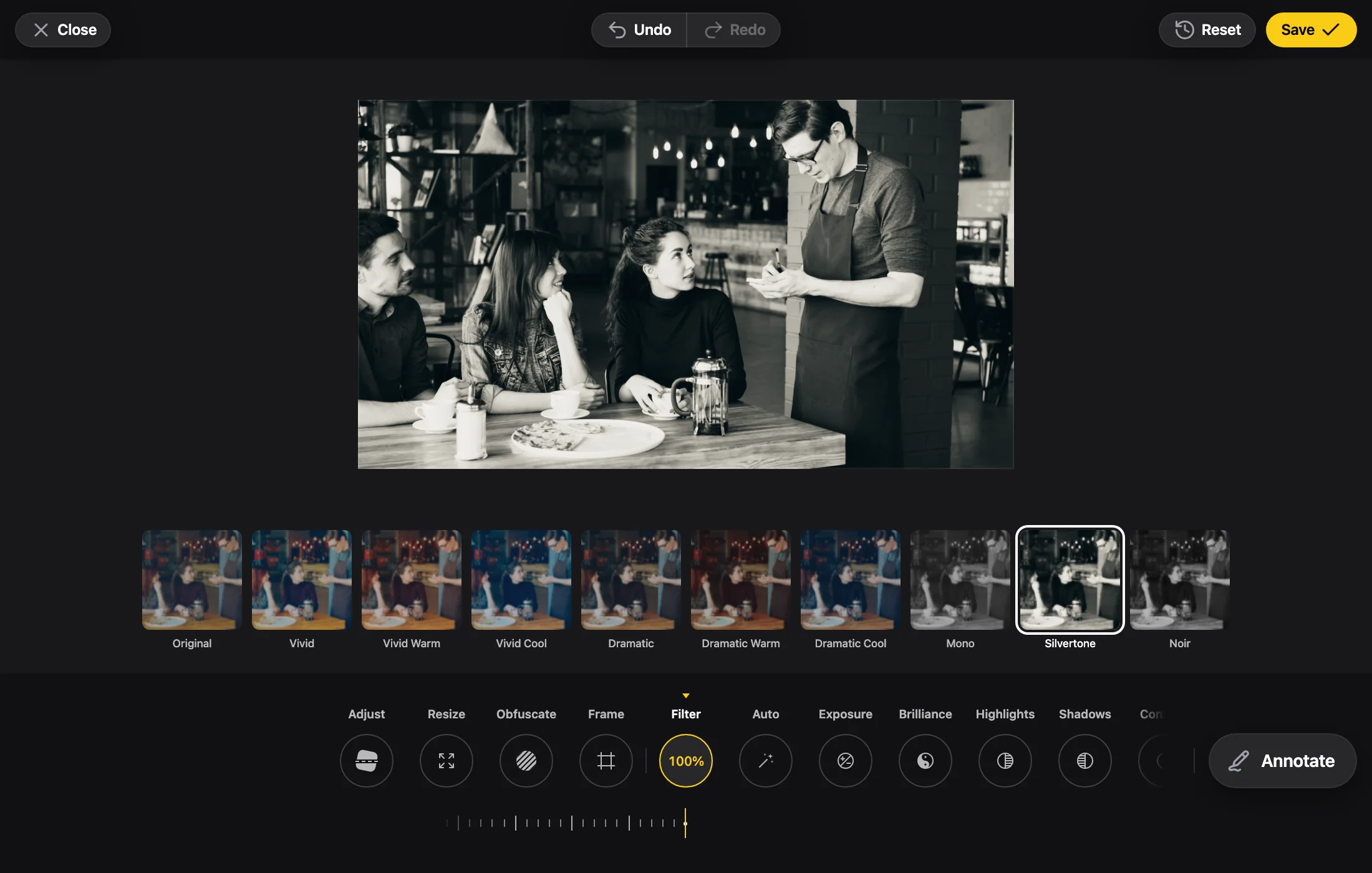
The editor, running in your browser, opened on a photo with its filter already saved. It is still editable. Photo by Vitaly Gariev on Unsplash.
What It Does
What Filters Gives Your Users

Nine Filters with an Intensity
A strip of thumbnails shows the current photo, with its crop and rotation, under each filter. An intensity ruler runs from 0 to 100, and a filter comes in at 100.
Auto in One Tap
One tap applies a tone curve and a color gain. Its ruler runs from −100 (darker, denser) to 100 (lighter, airier), and the other adjustments act on top of it.
Twelve Adjustments
Exposure works in stops of light: ±100 is ±2 stops. Each adjustment is measured against the iPhone Photos app and reproduced within a tested tolerance.
Thirteen Frames
Mat, Bevel, Line, Zebra, Lumber, Inset, Plus, Hook, Polaroid, Film, Rounded, Gallery and Photo Corners, with a color row that starts at white. A frame is drawn over the annotations and under the watermark and signature.
Resize
Width × height in px, always proportional, from 1 to 16384 a side within your maxWidth and maxHeight, the GPU limit and 16.7 MP. A small photo can be enlarged up to that limit.
In Code
The Props That Control It
Editor.tsx
<EmbedEditor
	enableFilter={false}
	enableFinetune
	enableFrame={false}
	enableResize
	src={src}
/>The Filter tool. Turned off, a filter already in the state stays and is saved.
Auto and the adjustments. Turned off, their values in the state stay and are saved.
The Frame tool. Turned off, a frame already in the state stays and is saved.
The Resize tool. Turned off, a size already in the state stays and is saved.
The edits the photo opens with, read at open. Keep the one onProcess gives you to reopen a photo as it was.
Use Cases
Where It Fits
Marketplace Listings
Give sellers Auto and a few adjustments, and hide Frame and Filter so the listing photos stay plain.
Photo Sharing and Prints
Offer Polaroid and Mat frames with the filters, and save the state so a person can return to an edit.
Profile Photos
Turn off Filter and Frame and leave Resize on, for a form that needs a size and nothing else.
Phone Uploads
Auto lifts a dark photo without changing its white balance, in one tap.
FAQ
Questions
Which filters does the editor have?
Nine, after Original: Vivid, Vivid Warm, Vivid Cool, Dramatic, Dramatic Warm, Dramatic Cool, Mono, Silvertone and Noir. They are the iPhone set, fitted to look like it.
Which adjustments can the user make?
Twelve: Exposure, Brilliance, Highlights, Shadows, Contrast, Brightness, Black Point, Saturation, Vibrance, Warmth and Vignette run from −100 to 100, and Sharpness from 0 to 100.
What does Auto do?
A tone curve and a color gain, at the amount this photo needs. It never lifts a dark photo more than two stops, leaves near-white areas alone and never changes the white balance. Its numbers are saved with the edit.
Can I hide a tool?
Set enableFilter, enableFinetune, enableFrame or enableResize to false. A tool turned off keeps what the state already has: its values are still drawn and saved.
Are filters in the free edition?
Yes. Filters, adjustments, Auto and frames are in the Full edition, and the Trial runs the same tools with the embededitor.com badge. The Free edition has the Adjust tools only.
Try filters in the playground.
It opens with this feature on. Change the edition, the colors and the tools, and copy the code for your app.
More features: Crop, Annotations, Obfuscate, Watermark, Large Photos, White Label.